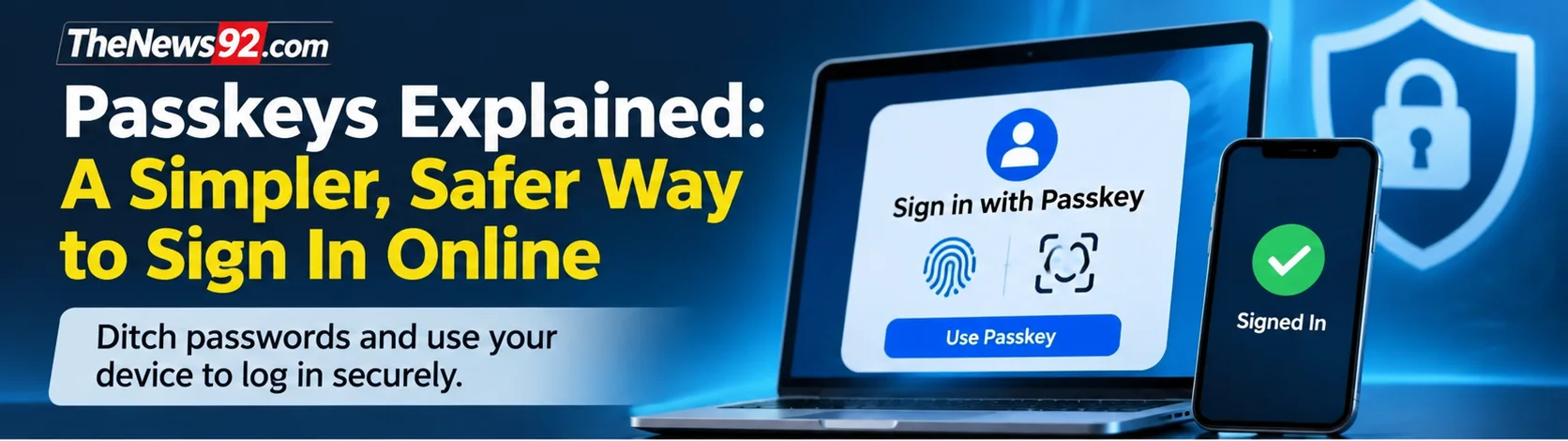
Passkeys are a passwordless sign-in method designed to make online accounts easier to access and harder to compromise through phishing. Instead of typing a reusable password, you approve a login using your device’s screen lock, fingerprint or face recognition.
What is a passkey?
A passkey uses public-key cryptography. When you register one, your device or credential manager creates a pair of cryptographic keys. The website stores the public key; the private key remains protected by your device or passkey provider. Signing in proves that you control the private key without revealing it to the website.
Why passkeys can be safer than passwords
Traditional passwords can be guessed, reused across services or entered into convincing fake login pages. Passkeys are bound to the legitimate website or app, which makes common phishing attempts substantially less effective. A website breach also does not expose a reusable passkey secret in the same way that a stolen password database can.
How to create a passkey
- Open the security or sign-in settings of an account that supports passkeys.
- Choose the option to create or add a passkey.
- Follow your device’s prompt to confirm with a screen lock, fingerprint or face recognition.
- Check the account’s recovery options and add a second sign-in method where supported.
Menu names vary by service and device. Only create a passkey while signed in on the official website or app.
What happens if you lose your phone?
Some passkeys synchronize through a credential manager, allowing you to use them on another trusted device after recovering access to that manager. Device-bound passkeys may require a separate backup credential. Account recovery procedures differ between services, so review them before relying on a single device.
Do passkeys replace two-factor authentication?
A passkey can combine possession of a device with local user verification, but the security policy depends on the service and how the passkey is configured. Some websites still offer additional verification or recovery checks. Passkeys do not eliminate every risk, especially if someone gains control of an unlocked device or a compromised account-recovery channel.
Passkeys versus passwords: which should you use?
Where a reputable service supports passkeys, they are often a strong choice for everyday sign-ins. Keep devices updated, enable a secure screen lock and maintain recovery methods. For accounts that still require passwords, use unique passwords stored in a trusted password manager and enable multifactor authentication.
Related account-security coverage
For more on safer authentication and the risks of sharing credentials with software, read our coverage of 1Password and AI-agent sign-ins without exposing passwords. For an example of why password handling matters, see our report on a database password exposure in an app.
Before switching to passkeys: a quick checklist
- Check that the account and your device support passkeys.
- Secure your device with a screen lock and keep its software updated.
- Review how your passkeys are backed up or synchronized, if applicable.
- Keep account-recovery methods current and protect any recovery codes.
- Do not delete an existing sign-in method until you have tested the replacement and recovery process.
Passkey availability and recovery options vary by service and device. Always review the account provider’s instructions before changing how you sign in.
Frequently asked questions
Can someone steal a passkey by watching me sign in?
Watching a fingerprint or screen-lock approval does not reveal the private cryptographic key. However, device theft and compromised recovery processes still require attention.
Can I use passkeys on more than one device?
Often yes, through supported synchronization or by registering additional passkeys. Availability depends on your operating system, credential provider and website.
Further reading: FIDO Alliance passkey resources and Google Account passkey guidance.